The Consent Pop‑Up feature in ShipSure allows you to display a dedicated pop-up encouraging customers to add shipping protection before proceeding to checkout. This ensures transparency and clear consent from customers.
Step 1: Access the Consent Pop‑Up Setting
Go to your Shopify Admin → Apps → ShipSure.
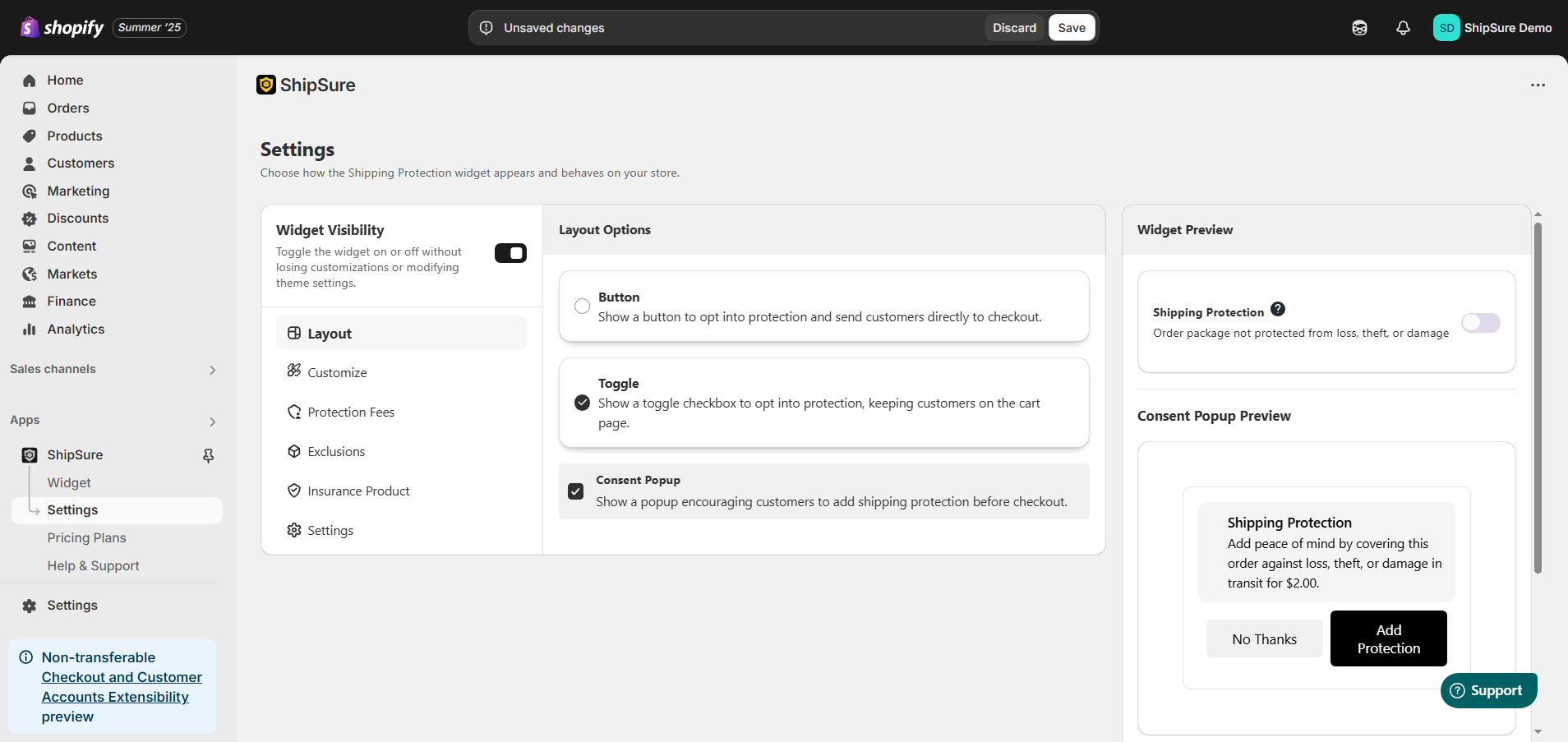
Click on the Settings → Layout tab.
In the Layout Options section:
Button – Adds a checkout button for opting into protection.
Toggle – Adds an in-cart toggle for protection selection.
Consent Pop‑Up → Enable this option to activate the pop‑up.
Step 2: Customize the Consent Pop‑Up
A Consent Pop‑Up Preview appears on the right side.
Customize the following fields:
Heading (e.g., “Shipping Protection from Damage, Loss & Theft for $2.00”)
Description (e.g., “Protect your order from damage, loss, or theft”)
Customize the button labels:
Add Protection (to opt-in)
No Thanks (to decline)
For further styling (fonts, colors, etc.), use the Customize tab.
Step 3: Save and Test
Click Save to apply your changes.
On your storefront:
Add an item to the cart.
Proceed to checkout → The Consent Pop‑Up should appear prompting for shipping protection.
Test both actions:
Add Protection → Insurance fee should be added to the cart.
No Thanks → Checkout proceeds without adding protection.
Compatibility Notes
The Consent Pop‑Up works with or without the Toggle option enabled.
If your theme uses a Cart Drawer / Slide Cart, ensure that both Toggle and Pop‑Up are tested for visibility and behavior.
Need Help?
If you face any issues while setting up the Consent Pop‑Up or using ShipSure, feel free to reach out to our support team:
Email: hello@shipsure.in
We’ll be happy to assist you and ensure your setup is completed smoothly.
Was this article helpful?
That’s Great!
Thank you for your feedback
Sorry! We couldn't be helpful
Thank you for your feedback
Feedback sent
We appreciate your effort and will try to fix the article